
Describe the failure before changing settings
- Check whether one website or several fail.
- Record the exact message, failing action, Firefox version and operating system.
- Try the same action again so you have a baseline.
- For work-managed sites or certificate warnings, use the administrator or the official error-specific guidance.
Mozilla distinguishes connection failures from other website errors, and failures in Firefox alone from failures in every browser. Use those categories to select its relevant instructions. Firefox cannot load websites but other browsers can
Choose a test that answers the observed question
| Observation | Possible next check | Interpretation limit |
|---|---|---|
| Only one site’s content or login is broken | Check the site’s protection panel and the exact feature that fails. | Blocked content is a lead, not proof of a bug. |
| Behavior may depend on extensions | Compare the repeatable action in Troubleshoot Mode. | It changes more than extensions, so isolate further. |
| Behavior differs between profiles | Compare documented profile conditions. | A difference does not identify the responsible setting. |
| A connection or certificate error appears | Follow Mozilla’s error-specific article. | Do not bypass a certificate warning to make the test succeed. |
For the state changes behind these methods, read the diagnostic-method comparison. Use Troubleshoot Mode
Narrow an extension-related observation
After a temporary-mode comparison suggests a disabled feature matters, return to normal mode. Use the extensions controls to disable an identified extension, reload the same page and repeat the same action. Keep notes on which extension changed; several simultaneous changes make the result harder to interpret. Troubleshoot extensions and themes
A successful result is a lead for checking that extension’s settings, supported version or maintainer guidance. Re-enable a change that did not help. An extension test should not turn into deleting all browser data.
A controlled example with a reversible cause
We authored a temporary demonstration extension that disabled a button on a local test page. The same page worked after that extension was disabled. These are actual Firefox 155 screenshots of fake content; they are not evidence of a bug in Firefox or a real website.
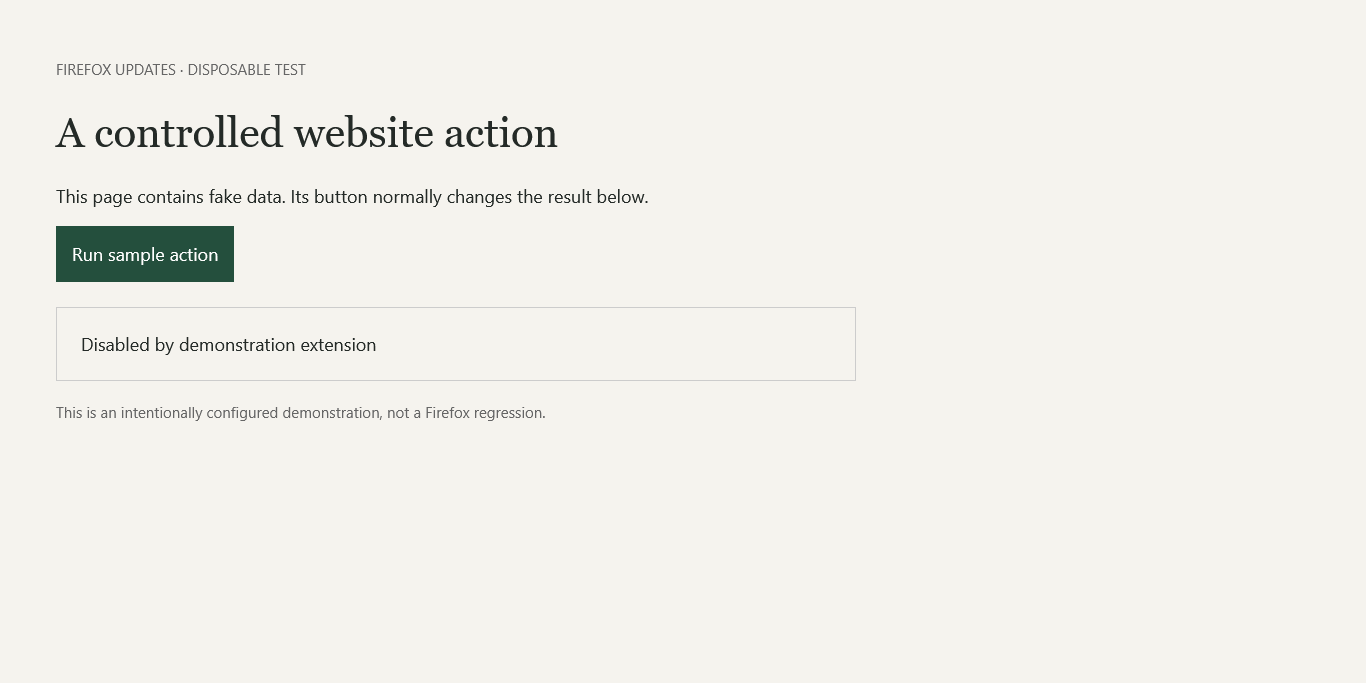
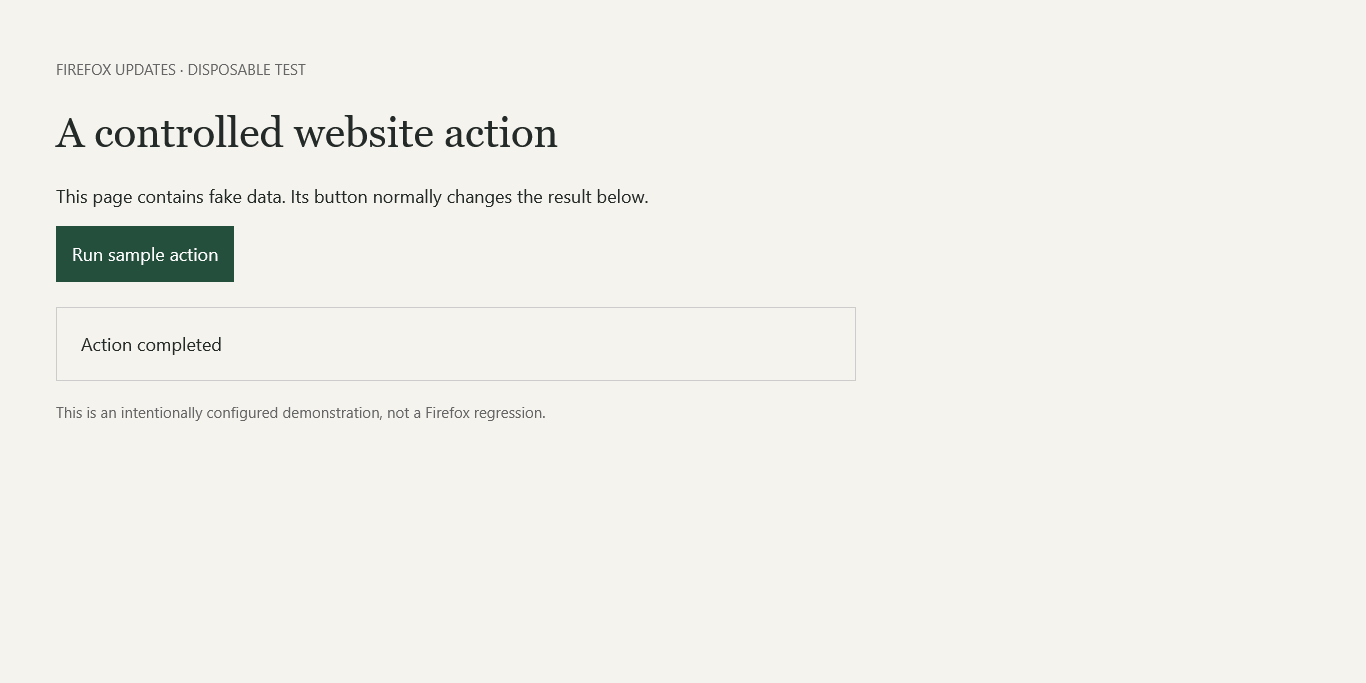
The lesson is to name both the condition changed and the action retested. “It works now” is less useful than a record showing which change made a repeatable difference.
If you test a tracking-protection exception
Mozilla documents using the shield panel to turn Enhanced Tracking Protection off for the current site. This allows trackers on that site and reloads it; other sites retain protection. Repeat the original action, then use the same control to turn protection back on when the exception is unnecessary. Enhanced Tracking Protection on desktop
If behavior changes, record the observation and report the broken site through Firefox’s documented route. Do not turn off global protection as a general repair. A site-specific workaround is not the same as identifying a shipped Firefox fix.
Retest the same task, then account for the change
Describe the failed action before changing a setting: for example, the same harmless button in the same window. Record the baseline, make one relevant change, and repeat that action. Record login or window-context differences that could affect the comparison.
If a change does not help, undo it before testing another. If it helps, record whether you kept it and why, or whether reversing it reproduced the failure. Keep a site-specific protection exception limited to the intended site and review the privacy consequence in the linked instructions. A different result gives you a lead; it does not establish that an update caused the failure.
Prepare a concise support record
Verify the task or prepare a useful report
If the task works, retry after restoring unnecessary exceptions. Note what must remain different and why. If it still fails, report the expected action, actual result, version, platform and the outcome of each scoped check. Omit private URLs, account details and browser-data files from public posts.
What our controlled Firefox test showed
A temporary authored extension disabled a button on a local page. Disabling that extension restored the action. A second controlled condition—a JavaScript preference—also produced and reversed failure. Both examples use fresh Firefox profiles and fake content.
Automated checks on Windows with the Playwright-patched Firefox 155.0 engine and Mozilla geckodriver. Fresh profiles and fake data only.
The test notes record the method and results. Bookmark export/import used Firefox’s core APIs; menu instructions are documentation-checked. Built-in Backup, Sync accounts, Refresh and safe-mode restarts were outside the experiments.
Sources & scope
Source checks are dated individually below. Interface labels and availability may vary by version and platform. Controlled Windows Firefox experiments are described in this guide and in the linked test notes.
- Firefox cannot load websites but other browsers can Error scope and connection settings · Checked 2026-10-07
- Use Troubleshoot Mode Temporary changes and interpreting results · Checked 2026-10-08
- Enhanced Tracking Protection on desktop What to do if a site seems broken · Checked 2026-10-07
- Troubleshoot extensions and themes Temporary-mode results and extension isolation · Checked 2026-10-08
Source review: Firefox Updates Verification Desk, an automated editorial role. Read the AI and verification disclosure.